



How to Connect Your Printer to Wi-Fi
If you want to connect your printer to Wi-Fi, start by using the wireless or network settings available on the printer. The wording of the menus can differ between printer models, but the basic process is generally similar.
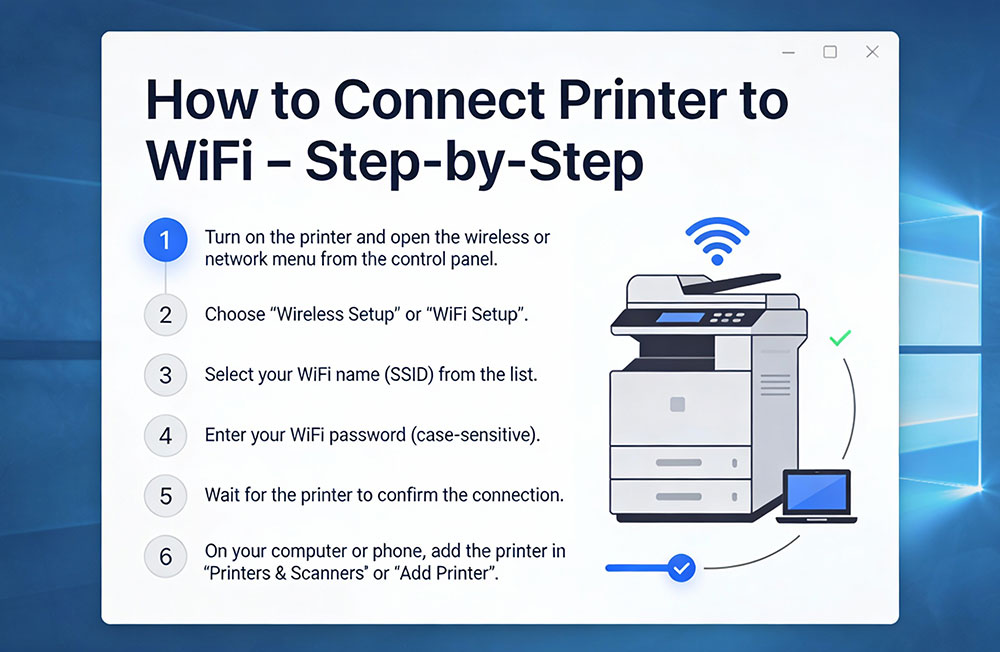
Connect Wi-Fi Printer From the Printer Menu
- Turn on the printer and wait until it reaches its ready state.
- Open the printer's Wireless, Network, or Wi-Fi settings.
- Choose the option for setting up or searching for a wireless network.
- Select your home or office Wi-Fi network from the available list.
- Enter the wireless password carefully.
- Confirm the network information and allow the printer to connect.
- Look for a connected message or wireless indicator on the printer.
Set Up a Wireless Printer With WPS
Some printers and routers provide a WPS option for connecting compatible devices without manually entering the wireless password.
- Check whether WPS is available on both devices.
- Open the printer's wireless setup menu.
- Select the WPS connection option.
- Press the WPS button on the router when prompted.
- Wait for the printer to report whether the connection was successful.
How to Connect Printer to Computer
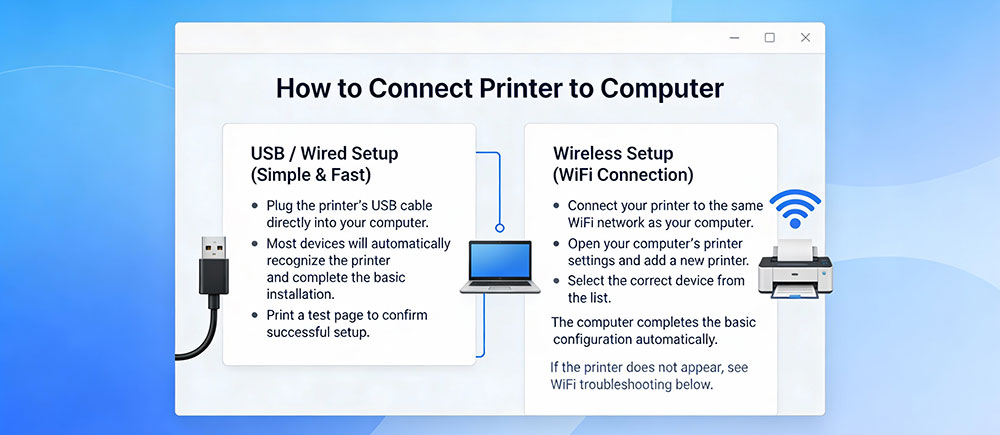
You can usually connect a printer to a computer using either a USB connection or a wireless network. Choose the method that matches your printer and computer.
Connect Printer Using USB
- Switch on the printer.
- Connect a compatible USB cable between the printer and computer.
- Wait for the operating system to detect the printer.
- Open the computer's printer settings.
- Check whether the printer appears in the available device list.
- Send a simple test document to check the connection.
Connect Printer Wirelessly
- First connect the printer to your Wi-Fi network.
- Connect your computer to the same network.
- Open the printer settings on your computer.
- Select the option to add a printer.
- Choose the available printer from the list.
- Complete the setup and test the printer.
Printer Offline — What to Check
If your printer appears as offline, the computer may not currently be communicating with the device. Before changing advanced settings, start with these basic checks.
Basic Printer Offline Checks
- Make sure the printer is turned on.
- Check the printer display for an error or paused state.
- Confirm the printer has an active network connection if you use Wi-Fi.
- Make sure the computer is connected to the appropriate network.
- Restart the printer and computer.
If the Printer Still Appears Offline
- Open your computer's printer settings.
- Locate the printer in the device list.
- Check its current status.
- If the printer was recently moved to another network, reconnect it to the correct Wi-Fi network.
- If necessary, remove the old printer entry and add the printer again.
Printer Scanner Setup — Scan Documents to Your Computer
If your printer includes a scanner, you can use it to create digital copies of documents and images. The available scanning options depend on the printer and computer.
Basic Scanner Setup
- Turn on the printer and make sure it is connected to your computer.
- Place the document on the scanner glass or document feeder.
- Open a compatible scanning application on your computer.
- Select the available scanner.
- Choose the required scan settings.
- Start the scan and save the resulting file.
If the Scanner Is Not Detected
- Check the printer's connection.
- Restart the printer and computer.
- Check whether the scanner appears in your computer's device settings.
- Close and reopen the scanning application.
Printer Setup Tips for a Smoother Connection
Whether you are setting up a new printer or reconnecting an existing one, a few simple checks can make the process easier.
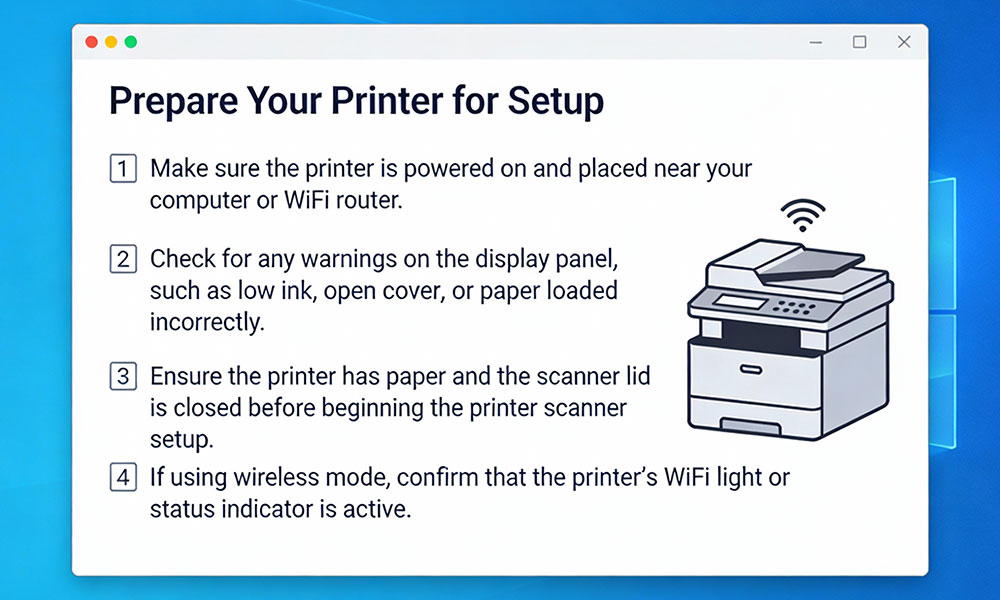
- Keep your printer near the router during initial wireless setup.
- Have your Wi-Fi network name and password available.
- Confirm the printer and computer are using the intended network.
- Restart devices when a temporary connection problem occurs.
- Check your printer's documentation when a menu option differs from the steps shown here.
Frequently Asked Questions About Printer Setup
- How do I connect my printer to Wi-Fi?
- Open the printer's wireless or network settings, select your Wi-Fi network, enter the password, and wait for the printer to confirm the connection.
- How do I connect a wireless printer to my computer?
- Connect the printer to Wi-Fi first, then make sure the computer is using the same network. Open the computer's printer settings and add the available printer.
- Why is my printer offline?
- The computer may have lost communication with the printer. Check the printer's power, network connection, computer connection, and printer status before trying to add it again.
- How can I connect my printer with a USB cable?
- Turn on the printer, connect a compatible USB cable to the computer, wait for the device to be detected, and then check your computer's printer settings.
- How do I set up the scanner on my printer?
- Connect the printer to the computer, place the document on the scanner, open a compatible scanning application, select the scanner, and start the scan.
- What should I do if my printer cannot find Wi-Fi?
- Check that the router is operating normally, move the printer closer to the router, verify the wireless settings, and check whether the printer supports the network connection you are using.
Disclaimer: refubwebprintingshop.store provides general printer setup and troubleshooting information for informational purposes. We are an independent reseller and are not affiliated with, sponsored by, or endorsed by any printer manufacturer. Product features, setup options, and compatibility can vary by model.